
This article will walk you through how to modify entries in your deadline chart with a label. The final section will show your admin users how to create custom labels for use by your team.
Basic Process for Adding Labels:
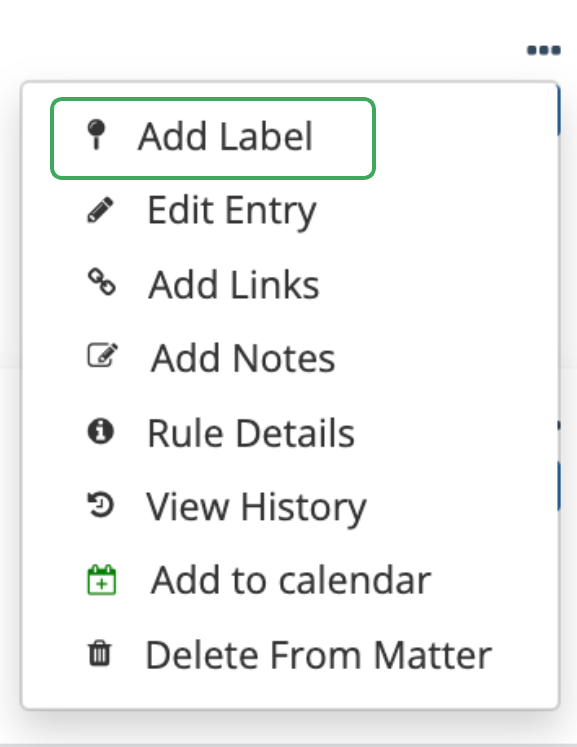
Matter menu > View & Edit Deadlines > ellipsis > Add Label
Step by Step Instructions:
Navigate to your matter name and click to open the menu
Go to "View and Edit Deadlines"
Go to the deadline you wish to modify and click on the ellipsis
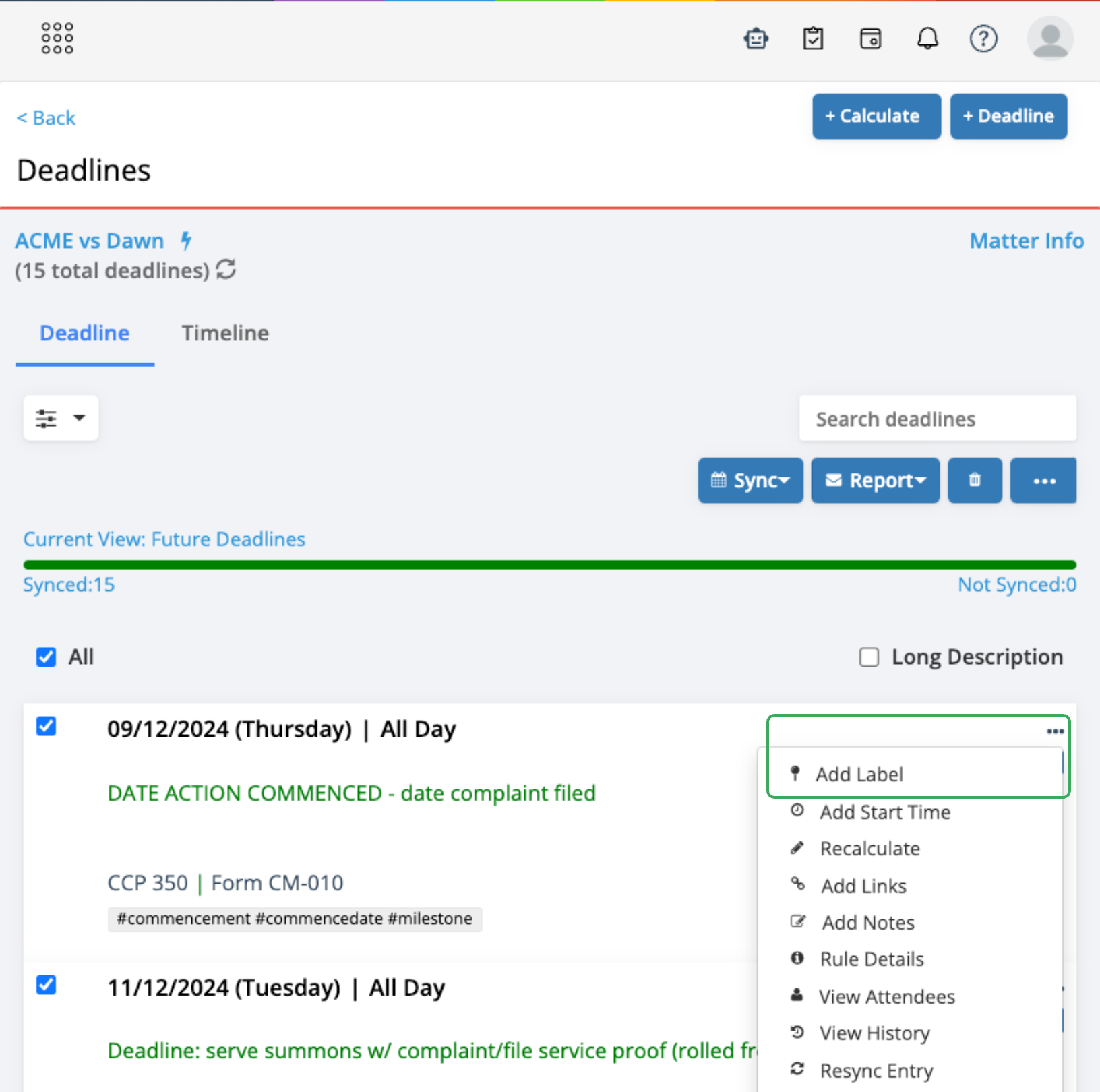
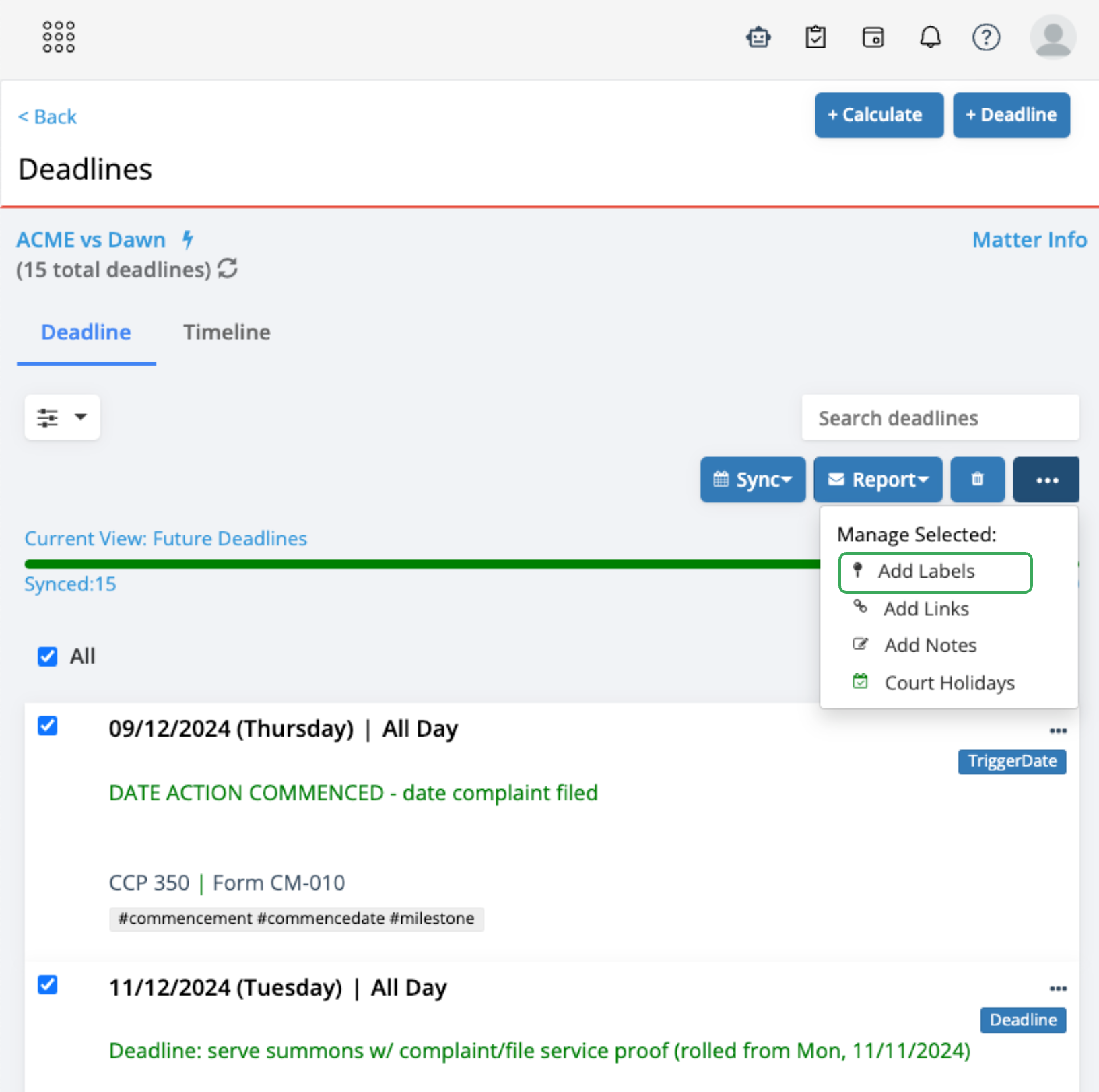
Label:
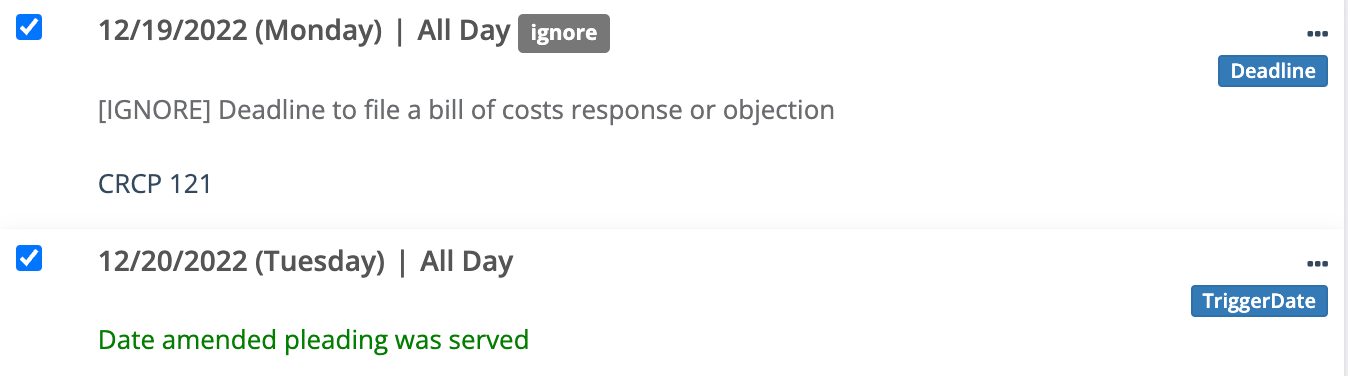
Use this feature to mark deadlines as needed
- Done, Pending, Continued, Urgent, Follow, Off Calendar, Vacate or Ignore
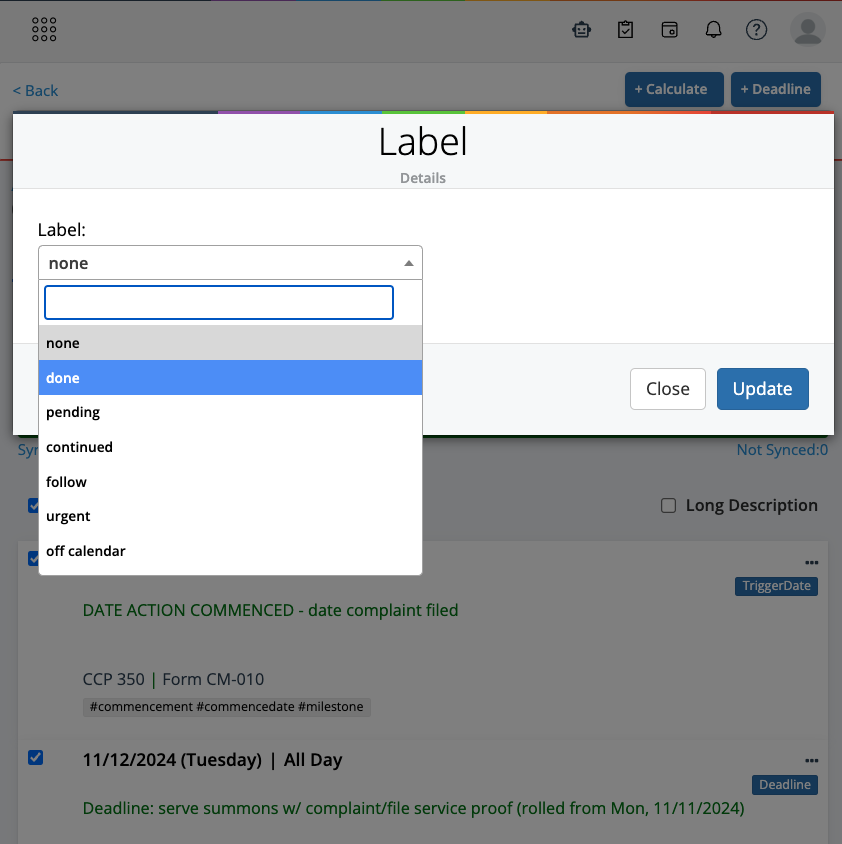
This creates a searchable tag and adds this to the deadline description to show in your reports, reminders, and calendar events.
Tip:
If you leave specific deadlines as unsynced, use the "ignore" or "continued" or "vacate" label so others working on the matter will know this was omitted on purpose.
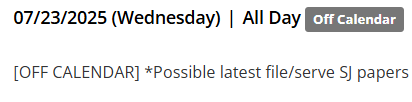
Off Calendar
The "Off Calendar" label is a highly recommended addition to any deadline that has not been synced to the calendar, either intentionally after creation or because the event is in the process of being rescheduled. The reason being is that all of the deadlines we have on LawToolBox will receive the 7 day eTickle reminder letting us know this deadline is approaching.
Adding the label lets all users added to the matter know that this deadline has been intentionally kept from their Outlook calendar, and is not something that was missed or forgotten.
Creating Custom Labels (Admin Portal):
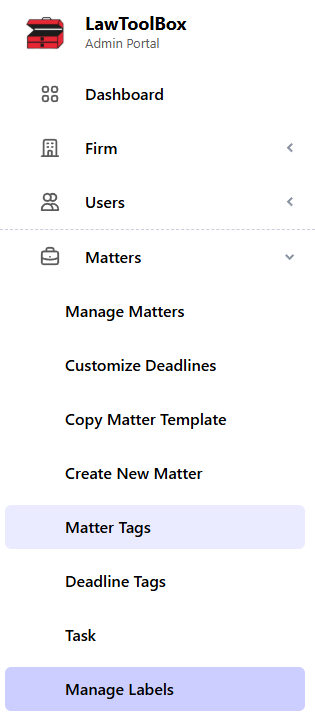
The following steps can only be completed by an admin user on your team. To begin login to the Admin Portal. Expand the "Matters" section of the navigation menu on the lest side of the screen. Select "Manage Labels."
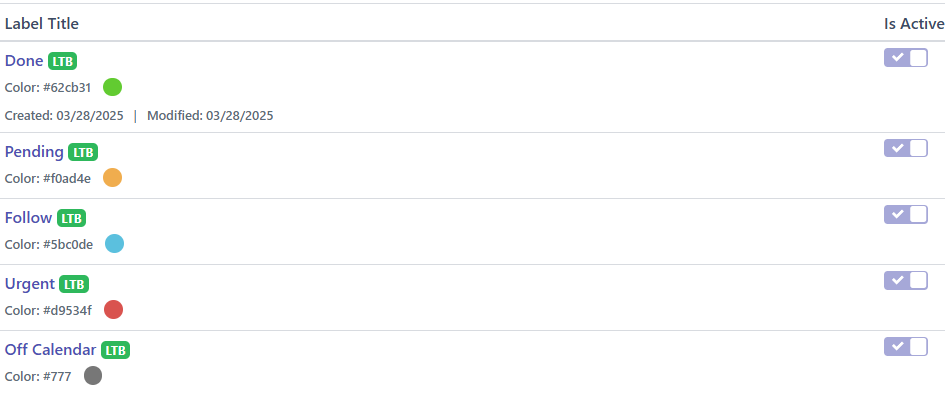
You will be brought to a table that includes all of the default labels provided by LawToolBox, and is where you will see your custom labels once they are created.
The default labels will include a LTB tag and can not be deactivated, edited, or deleted.
To create a new label, click the "+New Label" button in the top right corner of the screen.

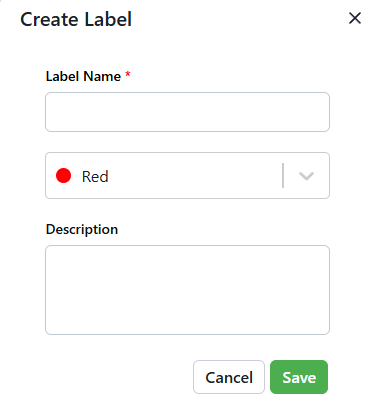
This will open a pop-up window where you can input the name, which is how the label will display on your deadlines, and select the color it will show as on the Deadline Chart. You also have the option to add a description of the label. Once finished, click save.
Your new label will be added to the bottom of the list of labels. Custom labels include a toggle for whether or not they are actively available for use by your team, as well as an action drop down.

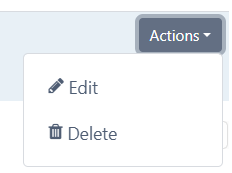
This action drop down is where you can edit or delete your custom label.
Note: Deleting a label will remove it from any event to which is had been previously applied. We recommend running a report with the label as your keyword filter to identify all deadlines the deletion of this label will impact.
Task Assignment & Tracking
Custom Labels
The color coding tool is most reliable when utilizing the label functionality of LawToolBox, and this can be leveraged for more intricate organization by using the custom labels functionality located in the Admin Portal. For more information on where to find this feature, and how to create custom labels, please review the FAQ - Edit - Adding & Creating Labels walk-through article.
Organization By Individual
A best practice that we recommend is to create custom labels that relate to individuals within your organization, and even include various statuses to not only track task assignment, but also task status. Common examples for our attorney John Doe could look like:
- JD_ToDo
- JD_Overdue
- JD_Done
There are three factors here to note to keep in mind if you wish to replicate this structure for your team. First off, we have standardized the prefix (JD_) for clarity purposes and to be reliably identified by the conditional formatting tool mentioned above. Next, we have kept the label itself as brief as possible to ensure that it takes up as little of the preview display as possible on Outlook. Lastly, this same structure will need to be duplicated for all members of the team we want this type of organization to capture.
Once the labels are complete, we simply need to start applying them to relevant events on matters, and set up the conditional formatting color coding functionality for each individual label.
See also:
FAQ - Calendar - Color Coding LTB Appointments in Outlook
FAQ - Edit - Add notes to deadlines