
If you are experiencing any of the following, please look at the steps below to troubleshoot a problem case.
Possible issues:
- Edit - Trying to edit or sync a deadline, but get an "Oops" error message
- Add - Get an error "Oops! Access denied to group"
- Sync - Updates in LawToolBox do not show on the Outlook calendar
- Sync - Deadlines are synced but don't appear on the calendar
- Outlook - Not part of the matter in LawToolBox, but still see deadlines in Outlook
Solution:
- Visit "Shared Users" - This screen will run an automatic audit to re-add any problem users to the matter
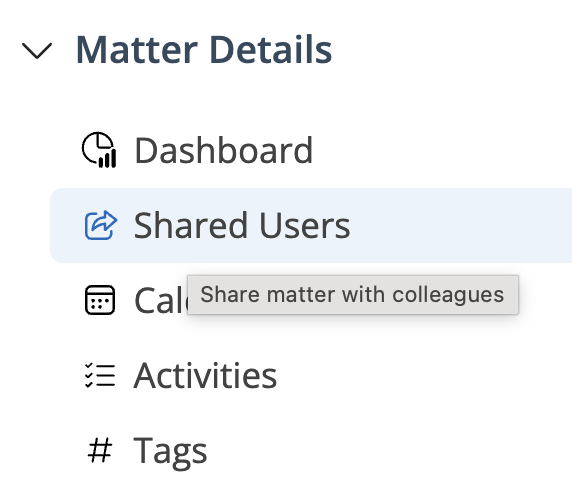
Runs automatic audit: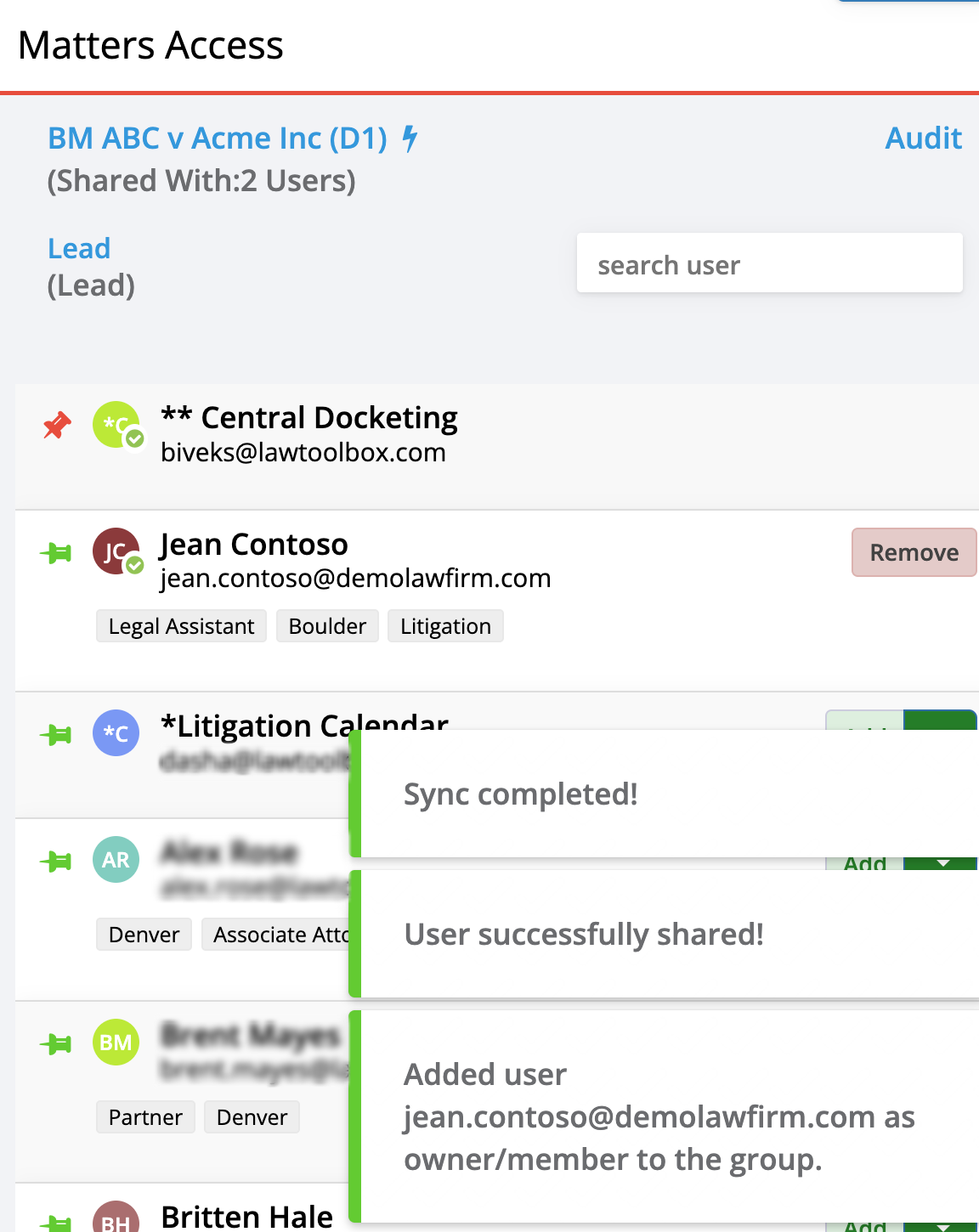
Problem:
Help: M365 Groups for LawToolBox
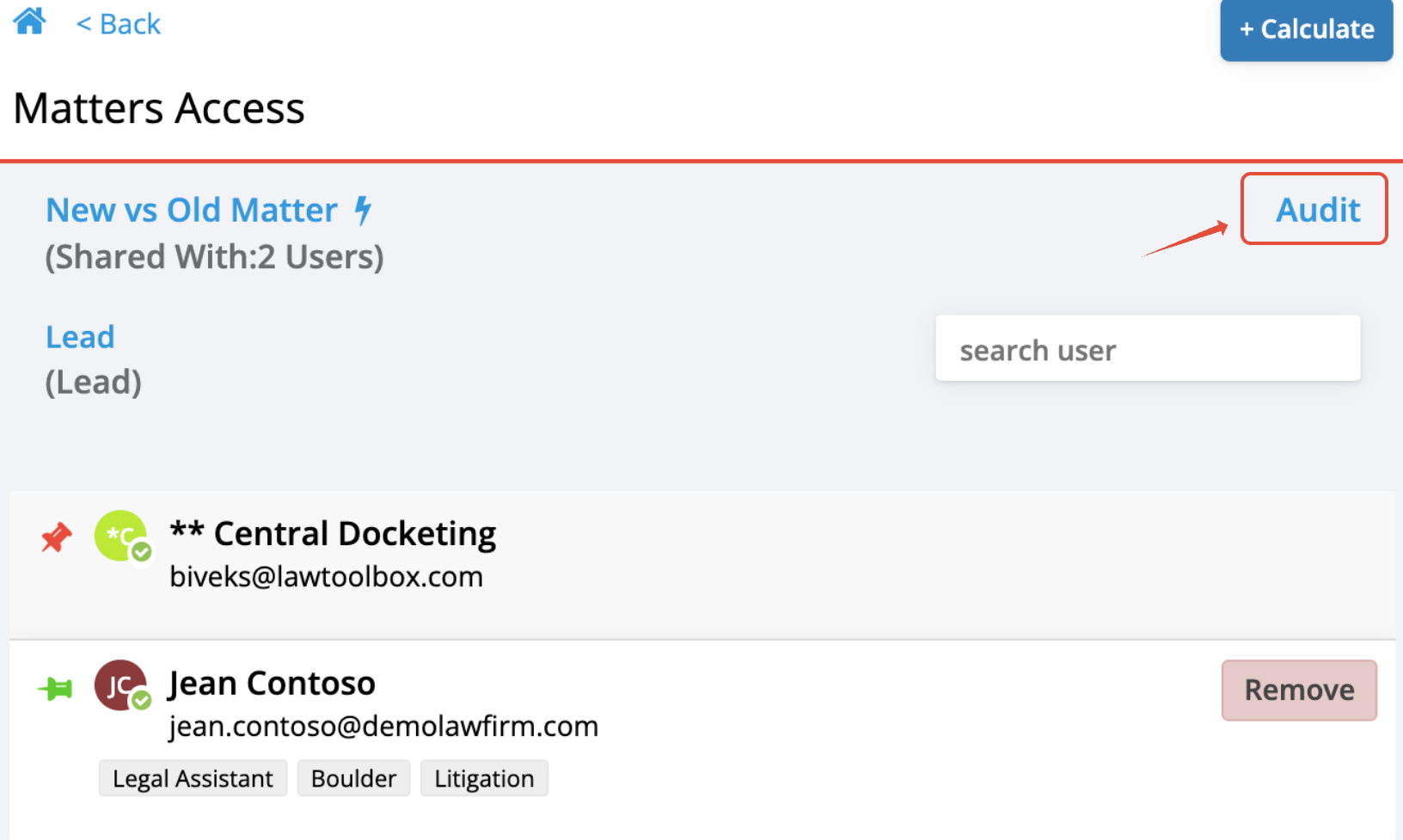
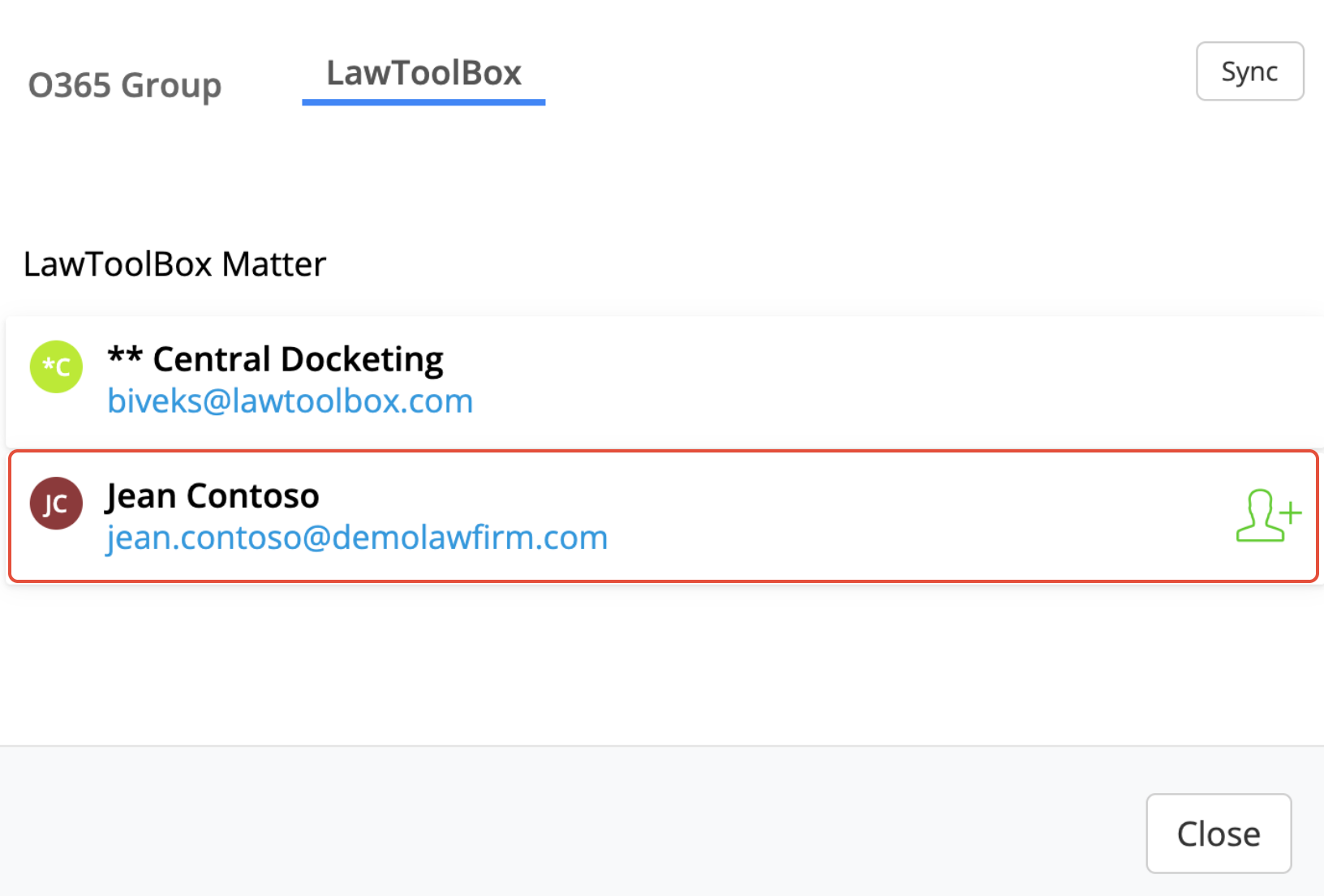
User shared in LawToolBox only, Not the O365 Group:
 |  |
_________________________________________________________________
Step-by-step
Step 1: Confirm this is your issue
There was a mismatch when the case was created or modified:
"Shared Users" > "Audit"
This menu option allows you to confirm who can view, edit, and receive deadlines in Outlook
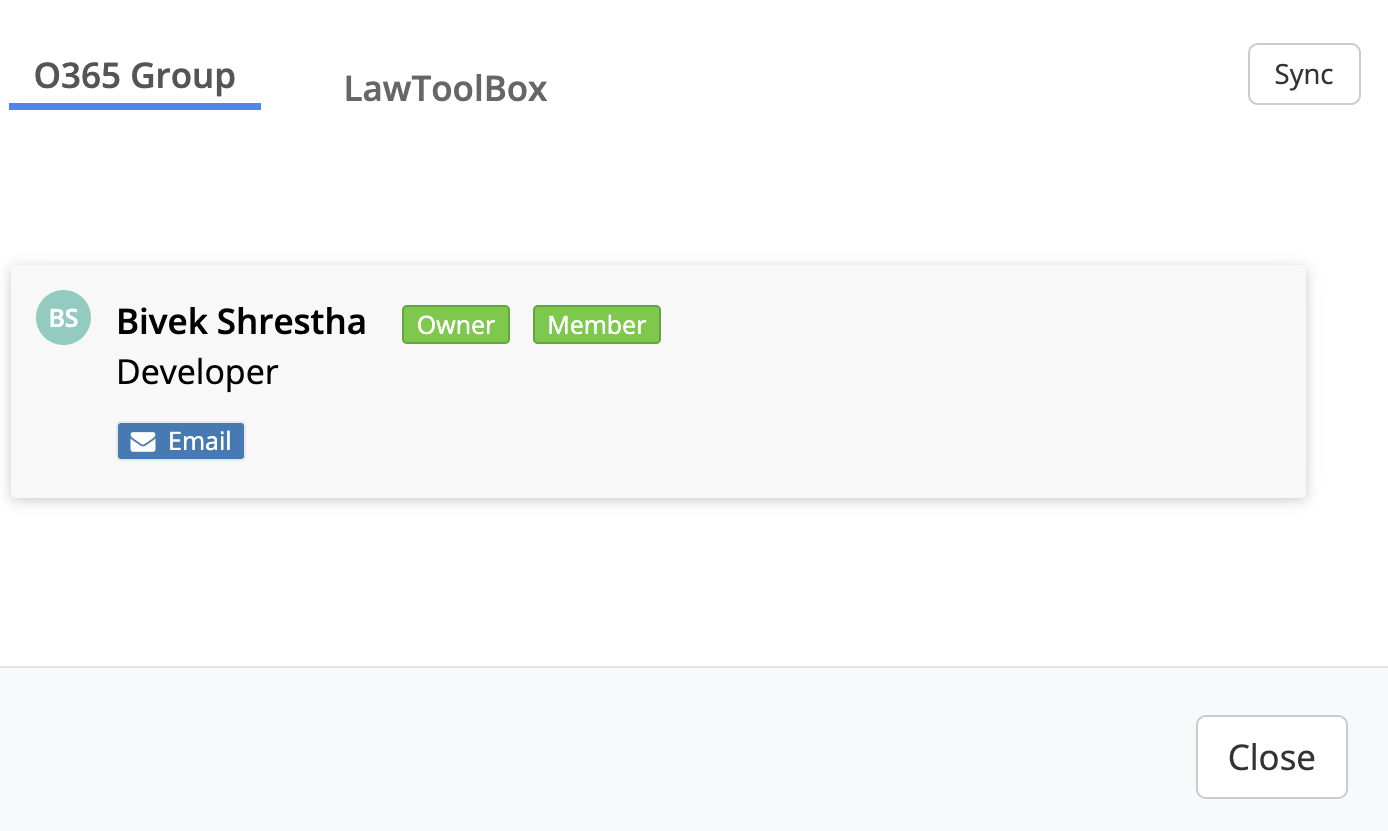
- Normal behavior tabs should match 1 to 1
- Problem behavior more users in the LawToolBox tab
"O365 Group" tab
| "O365 Group" tab Users in the group 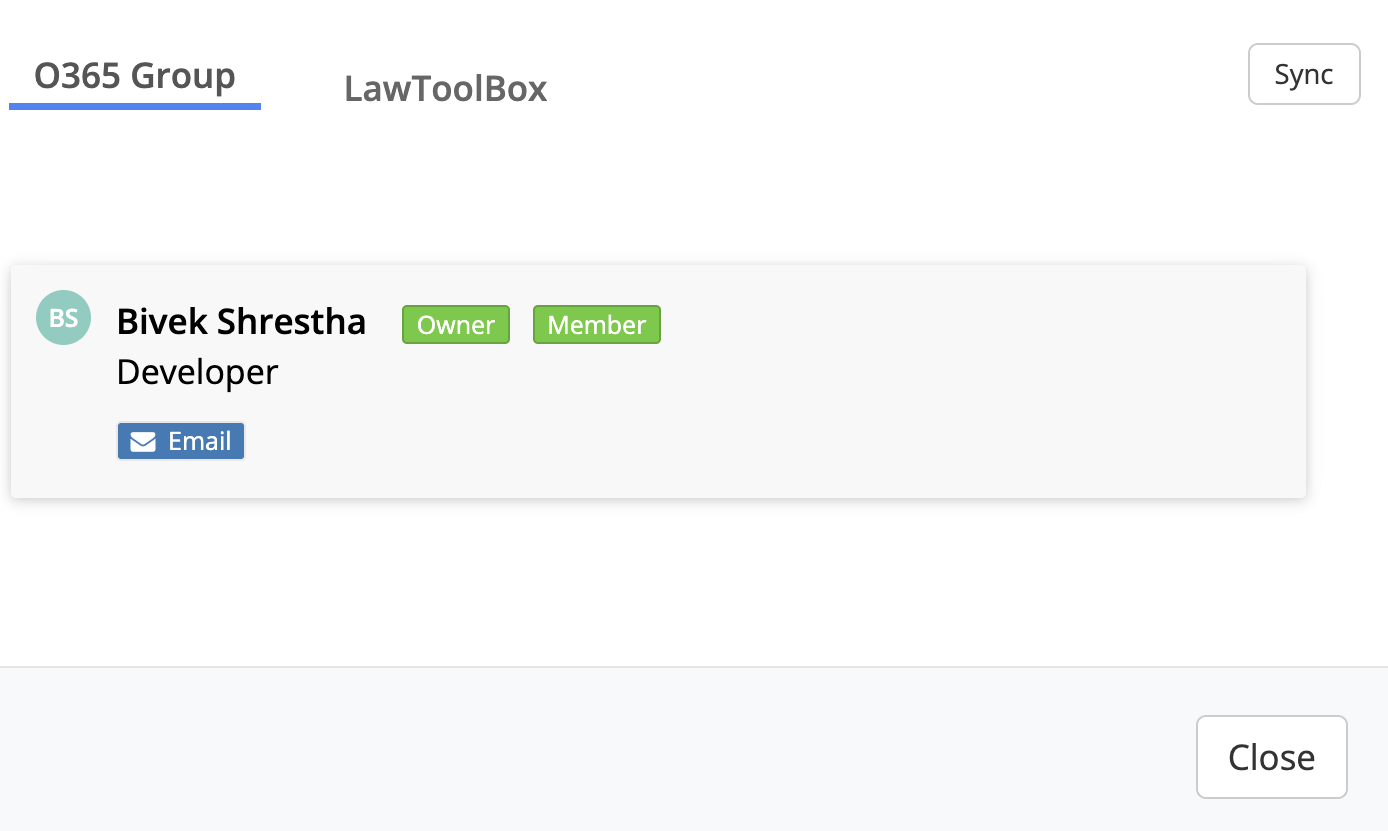 |
"LawToolBox" tab
| "LawToolBox" tab 2 Users in the app 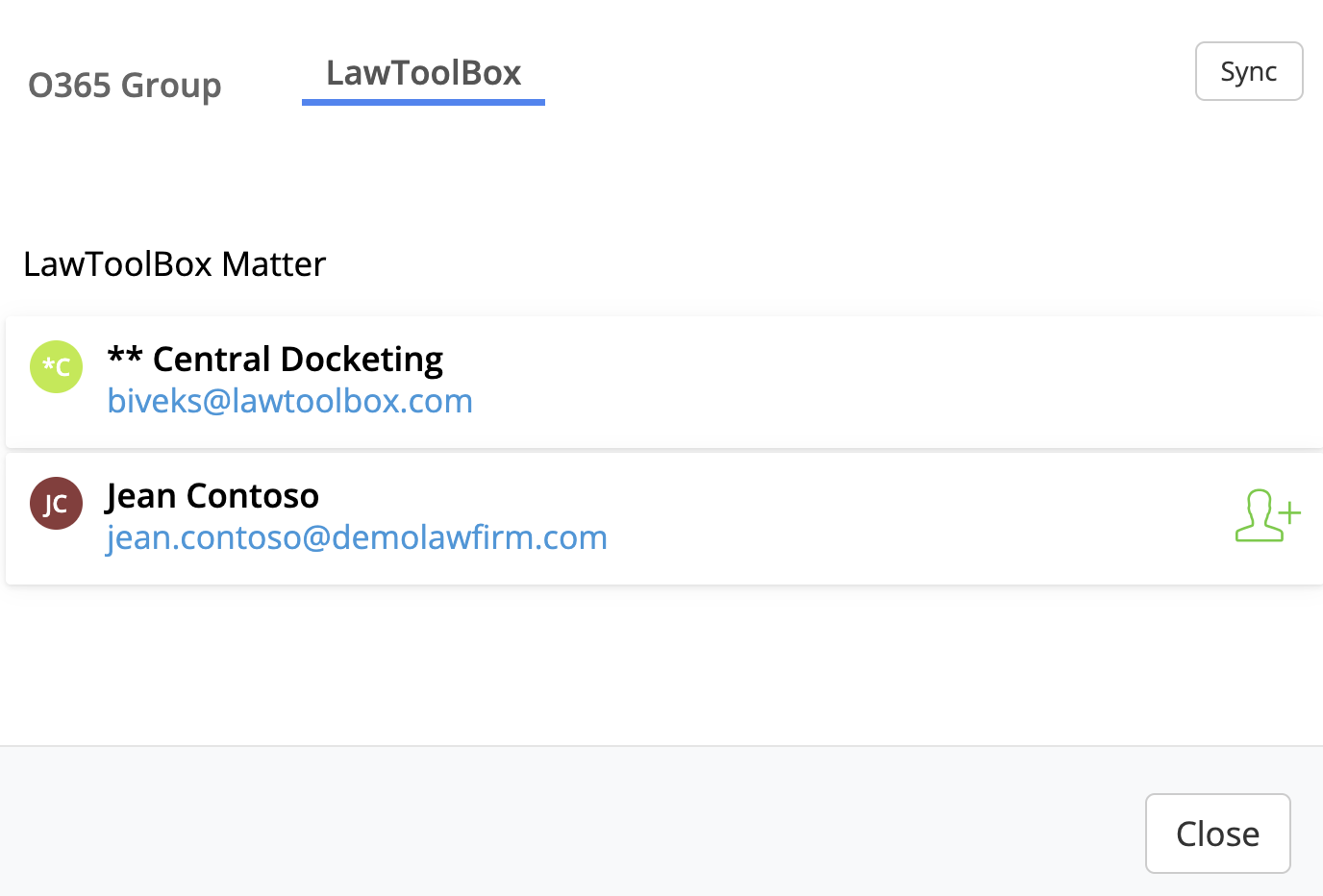 |
 icon, add the user to the group
Opption B: Share Matter
- Ask another user to re-share the matter with you
- Go to "Share Matter", remove the problem user and re-add to force update
- Check the "Audit" to verify tabs match 1-1
_________________________________________________________________
Step 3: Optional
Audit: Update Deadlines
Need to force update the deadlines?
- "View and Edit Deadlines"
- Scroll to the bottom
- "Audit"
- "Resync (Force update existing)"
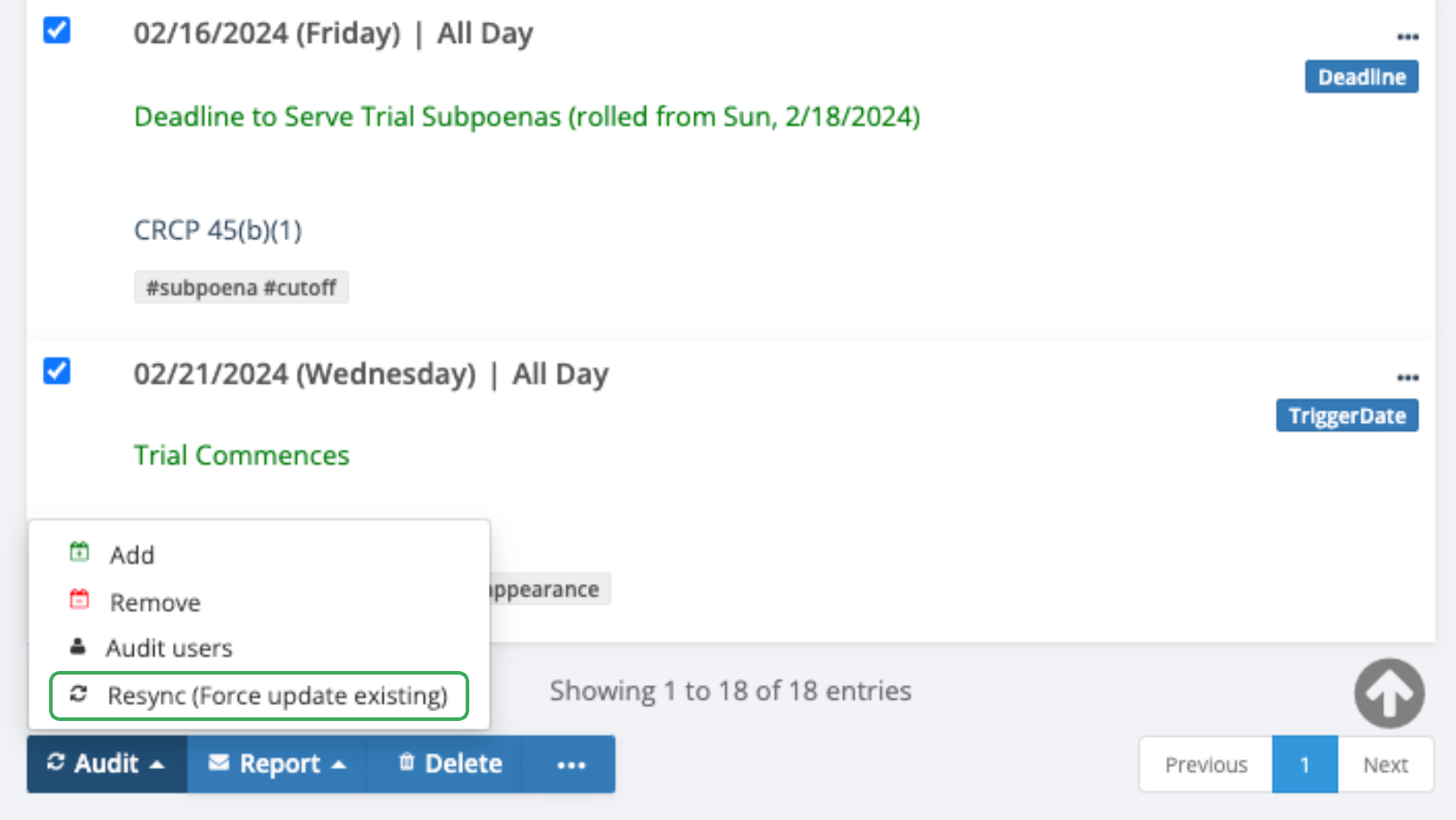
- All deadlines should successfully update
- Click "Audit Group" to verify O365 tab (Please note, this may take a moment to show)
_________________________________________________________________
Notes:
Why am I seeing these issues?
There are many reasons this may happen and LawToolBox does not have visibility into the cause of the issue. Most users experience this rarely with one case. If this happens in all of your cases, please reach out to our helpdesk.
This issue occurs in your Microsoft 365 tenant due to delays in a new group provisioning, interruptions of the request when adding new users, accidentally leaving the group, being removed by someone else, name or email changes, etc.
Still have trouble?
Note: Requires Enterprise permissions from IT
M365 Admin - Deployment: Application Permissions